Put Yourself in an AI Video: 2 Ways to Start
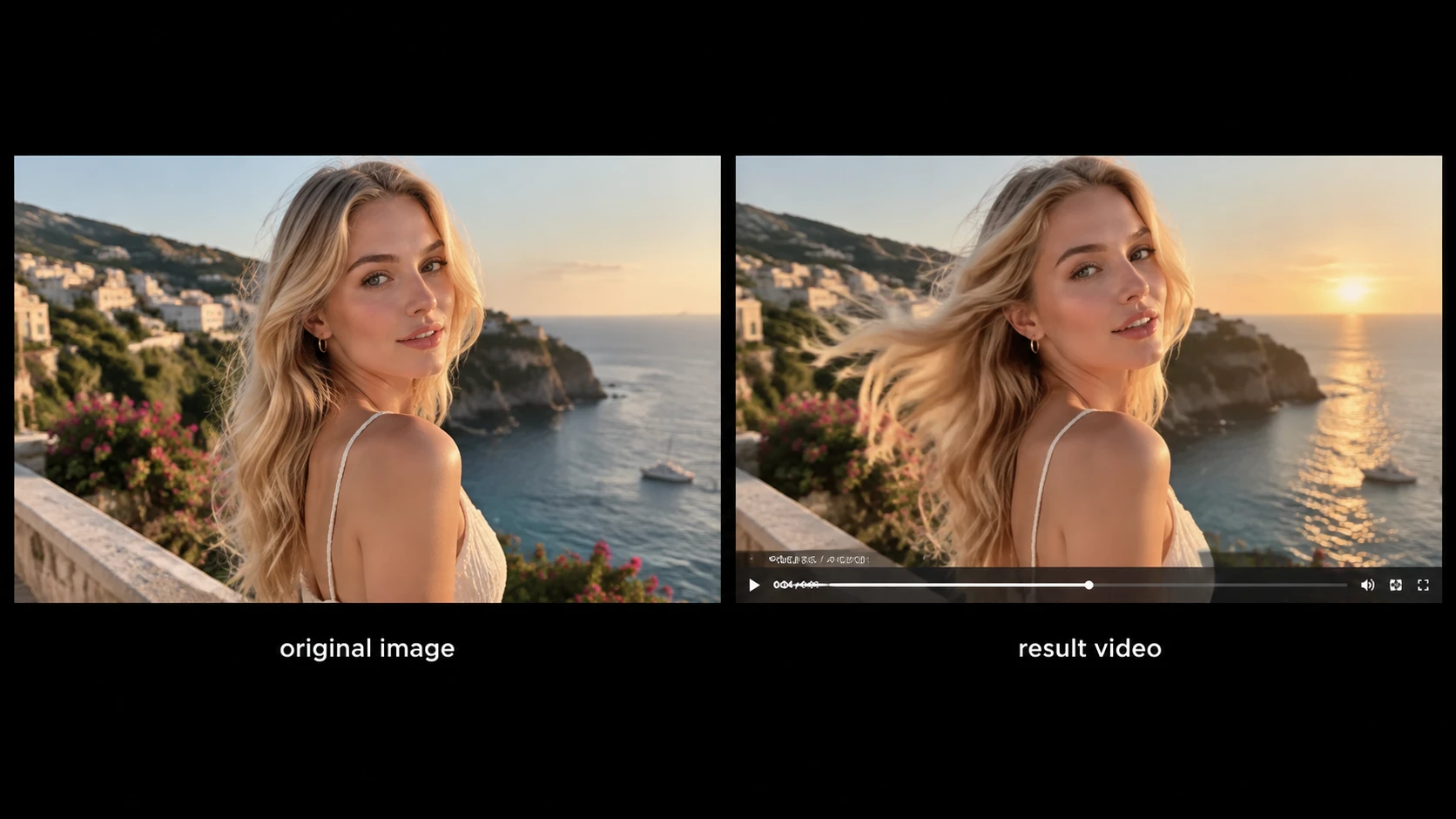
Want to put yourself in an AI video? Start with a photo you want to animate, or use reference images to guide a new scene. The right choice depends on the material you have and how much of the original setting you want to keep.
Choose Your Starting Point
| What you have | What you want to make | Vidsoul workflow |
|---|---|---|
| One portrait or photo of yourself | Animate the image into a short clip | AI Video with Image-to-Video |
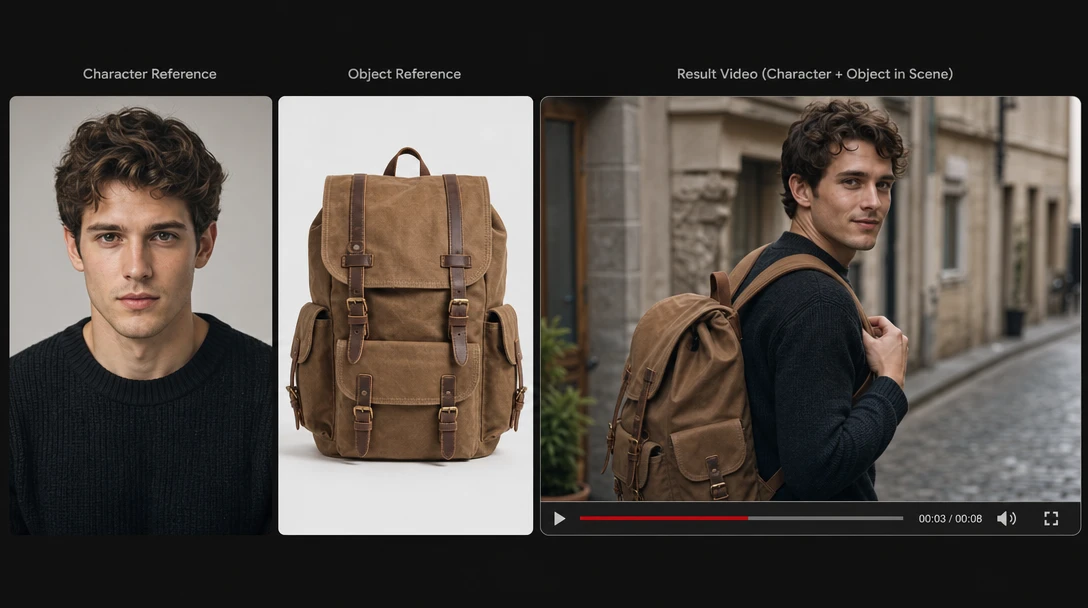
| Images of yourself, your outfit, or a setting | Generate a new scene guided by references | Reference-to-Video |
Image-to-Video starts from a still image. Reference-to-Video uses images to guide a newly generated shot; the references do not necessarily become its first frame. The number of references available depends on the selected model.
Prepare a Photo the Model Can Read
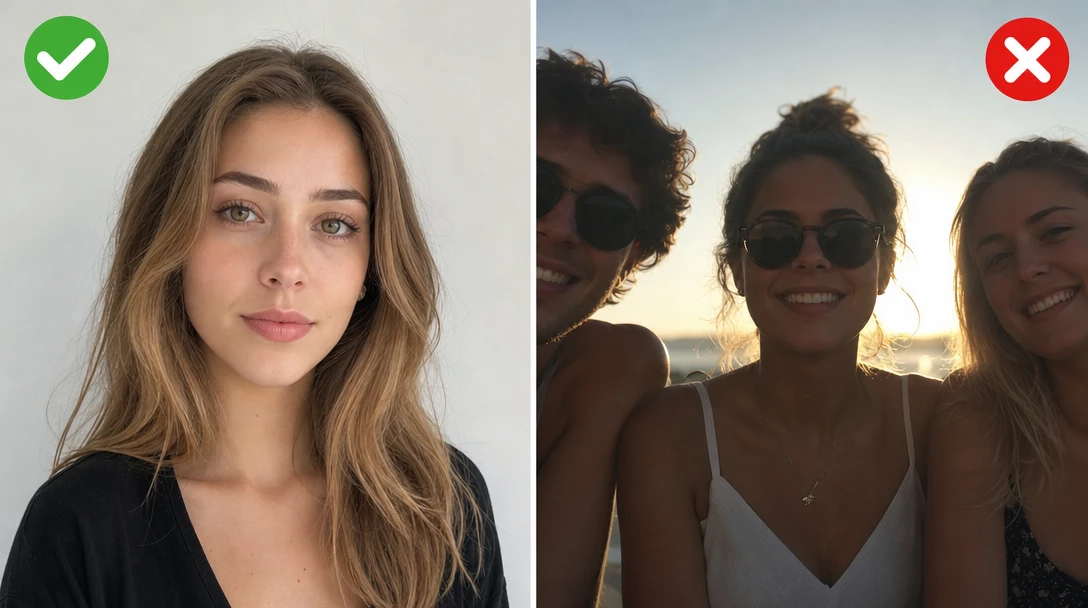
Start with a clear image where your face is visible and evenly lit. A front-facing or slight three-quarter view may provide more visible detail than a side profile. Avoid heavy filters, sunglasses, group photos, and hard shadows across the eyes. These are general input suggestions, not Vidsoul-specific guarantees.
For Reference-to-Video, you can give images different jobs. One can show your face and clothes; another can guide the location or visual style. Keep the references consistent and explain what the model should take from each one.
Use your own photos and likeness, or get the person's permission before using them. Avoid presenting an AI-generated clip as real footage of someone who did not agree to appear in it.
Animate One Photo With Image-to-Video
Image-to-Video is a starting point for a clip from a portrait or a photo of yourself in a setting. The uploaded image establishes the starting look; your prompt describes the action and camera movement you want to add.
Keep the first movement simple. A small head turn, a step toward the camera, or a glance toward a window gives the prompt a narrower action than a full spin or fast dance. Large turns ask the model to render views that are not visible in the source image; the result depends on the selected model and has not been tested here.
Example prompt
She steps from the subway entrance onto the rainy street and glances toward the camera. Medium shot, gentle handheld follow, traffic-light reflections on the wet pavement. Keep her face, hair, and dark denim jacket consistent with the source image. Continue the original scene and lighting; no cuts or location changes.
Build a New Scene With Reference-to-Video
Choose Reference-to-Video when you want images to guide a new scene. Use a portrait to guide your appearance and another image to suggest the setting, outfit, or visual style. Then describe the action you want to generate.
Start with images that show different useful details: a clear portrait for your face, a full-body image for clothing or proportions, or a location image for the environment. Check the selected Vidsoul model's reference-image limit before adding more.
Example prompt
Use Reference 1 for the same adult's face, hair, and clothing. Use Reference 2 for a city rooftop terrace at dusk, with a visible terrace floor, a waist-high safety railing, and the skyline beyond it. The person walks across the terrace to the inner side of the railing, rests their hands lightly on it, and looks across the city. A medium-wide shot tracks from behind, then settles into a three-quarter side view. Keep their identity and outfit recognizable; no text or logos.
The references guide appearance and scene, but they do not guarantee a perfect match in every frame. Review the generated clip before sharing it.
Check the Result Before You Share It
Watch the full clip once at normal speed. Then check the beginning, middle, and end for changes to your face, hair, clothing, body shape, and the scene. Look closely at turns, occlusions, and fast movement, where identity can drift.
If the face changes in Image-to-Video, try a clearer portrait and reduce head movement. If Reference-to-Video mixes details from images, try simplifying the references and state which details each one should guide. These are suggestions to test, not guaranteed fixes. The selected model, input images, and motion all affect the result.
Frequently Asked Questions
Can I make an AI video of myself from one photo?
Use Image-to-Video with a clear portrait and describe one simple action. A single image provides limited views of your face, so large turns or fast motion may change your appearance.
When should I use Reference-to-Video instead?
Use it when you want the model to generate a new scene guided by images of your appearance, clothing, or setting. The reference images guide the result but are not necessarily the first frame.
How many reference images can I upload?
The limit depends on the selected model in Vidsoul. Check the model's input settings and use only the references that add useful information.
Pick the Starting Point First
Use Image-to-Video to animate a photo, or Reference-to-Video to guide a new scene with reference images. Open AI Video or Reference-to-Video to start with the material you have.