Reference to Video: Create Consistent AI Product Videos
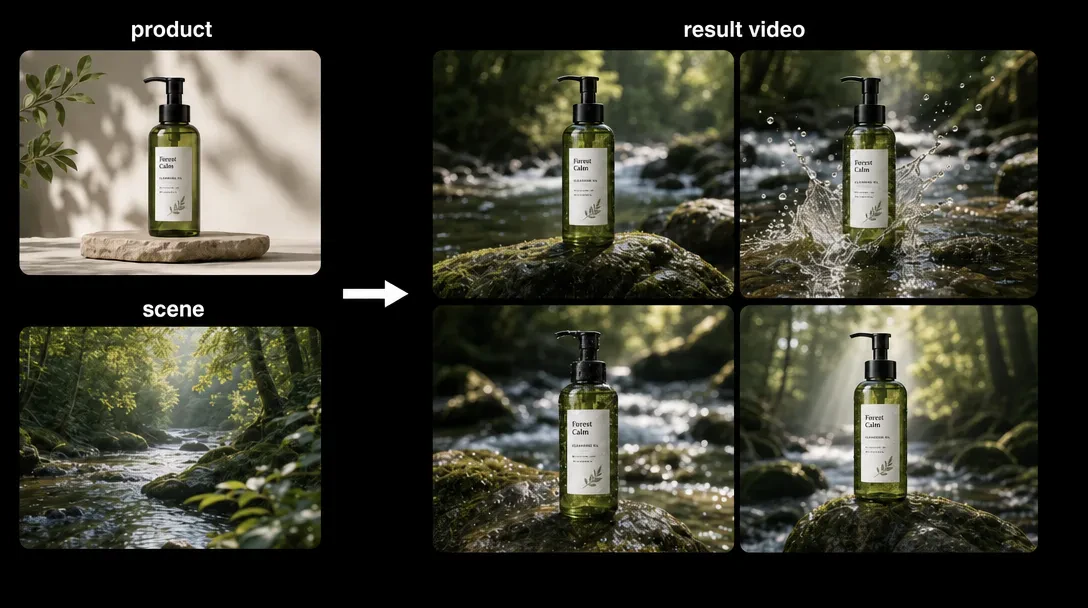
You have a product image and a setting in mind. In Vidsoul's Reference to Video mode, both can guide the generated clip: the product image shows what must stay recognizable, while a scene image can suggest the location, composition, or light. The prompt describes what happens.
You do not need to prepare a set of product photos from different angles for every clip. One clear product image and one useful scene reference may be enough. Add another product view only when it shows a detail the first image cannot.
Reference to Video or Image to Video?
Use Image to Video when you want to animate one specific still. Reference to Video uses one or more images to guide the look of a newly generated shot. Those references do not necessarily become the opening frame. Text to Video starts from a written description without image references.
For a product clip in a new setting, Reference to Video is often the useful mode: give it images that show the product clearly, then describe the scene and action. The number of references you can use depends on the model selected in Vidsoul.
Choose a Product Reference and a Scene Reference
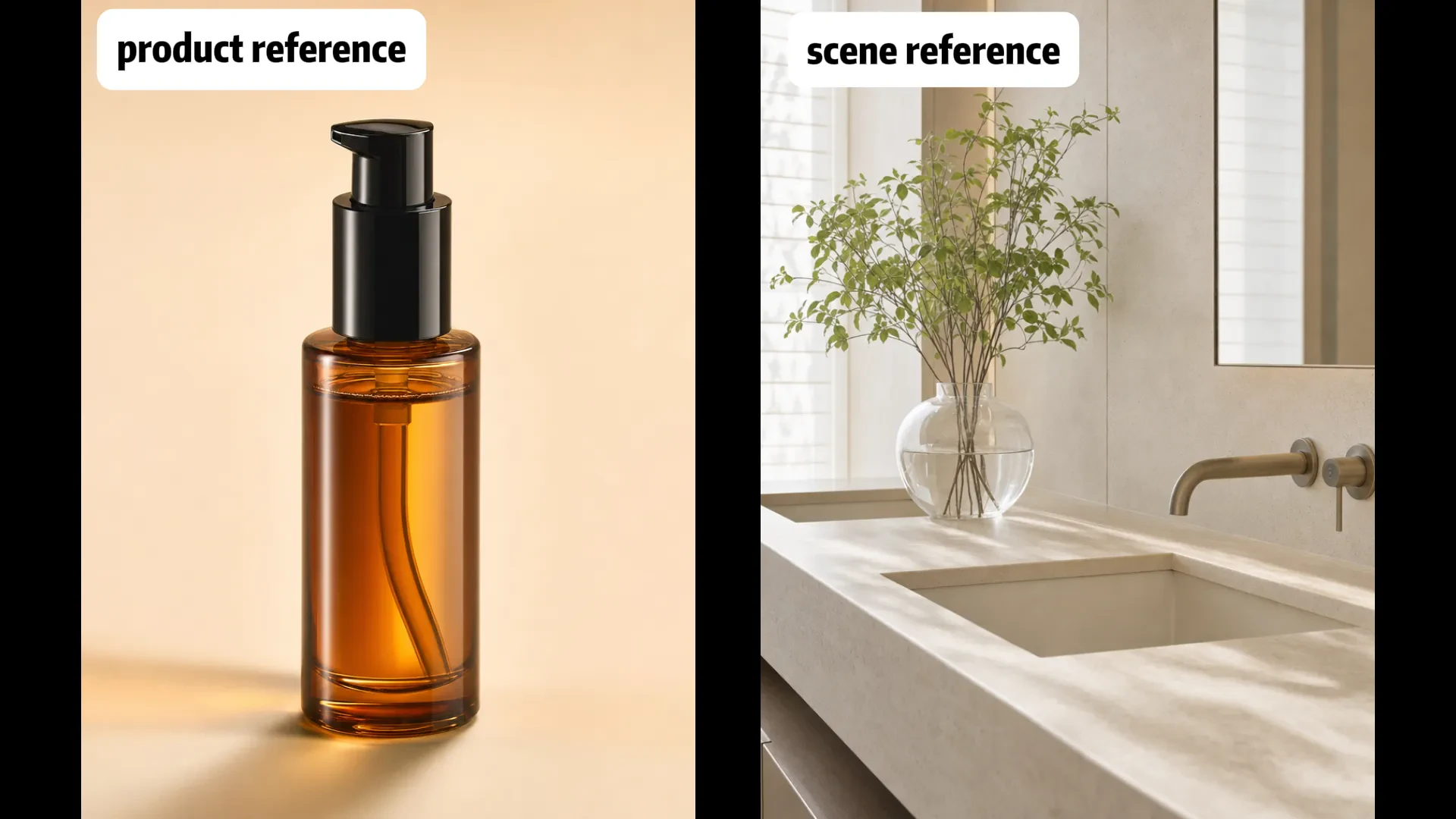
The product reference should show the item clearly: its shape, color, packaging, and any details the clip needs to preserve. A separate scene reference can guide the setting. For example, pair a clean bottle photo with an image of a pale stone bathroom shelf and soft window light.
Keep the product reference consistent. Do not mix different labels or package versions. The scene reference can look different from the product photo; its job is to show the location or visual mood, not another version of the product. If you use several images, explain what each one should guide.
Decide What Should Change
Before writing the prompt, decide what the references should preserve and what the new shot should change. For an ad, you might keep the bottle, cap, and label layout while placing it on a bathroom shelf. For a product demo, the package stays the same while a hand picks it up.
Keep the action small. A bottle can stay still while the camera pushes closer. A hand can pick up a mug and set it down. Asking the product to spin, open, pour, change color, and move through the frame gives the model too many jobs at once.
The same goes for the scene. If you want the product to remain the focus, resist adding moving curtains, floating petals, splashing water, lens flares, and a dramatic camera orbit all at once. Pick the one detail that helps sell the shot.
Describe the Camera and Light
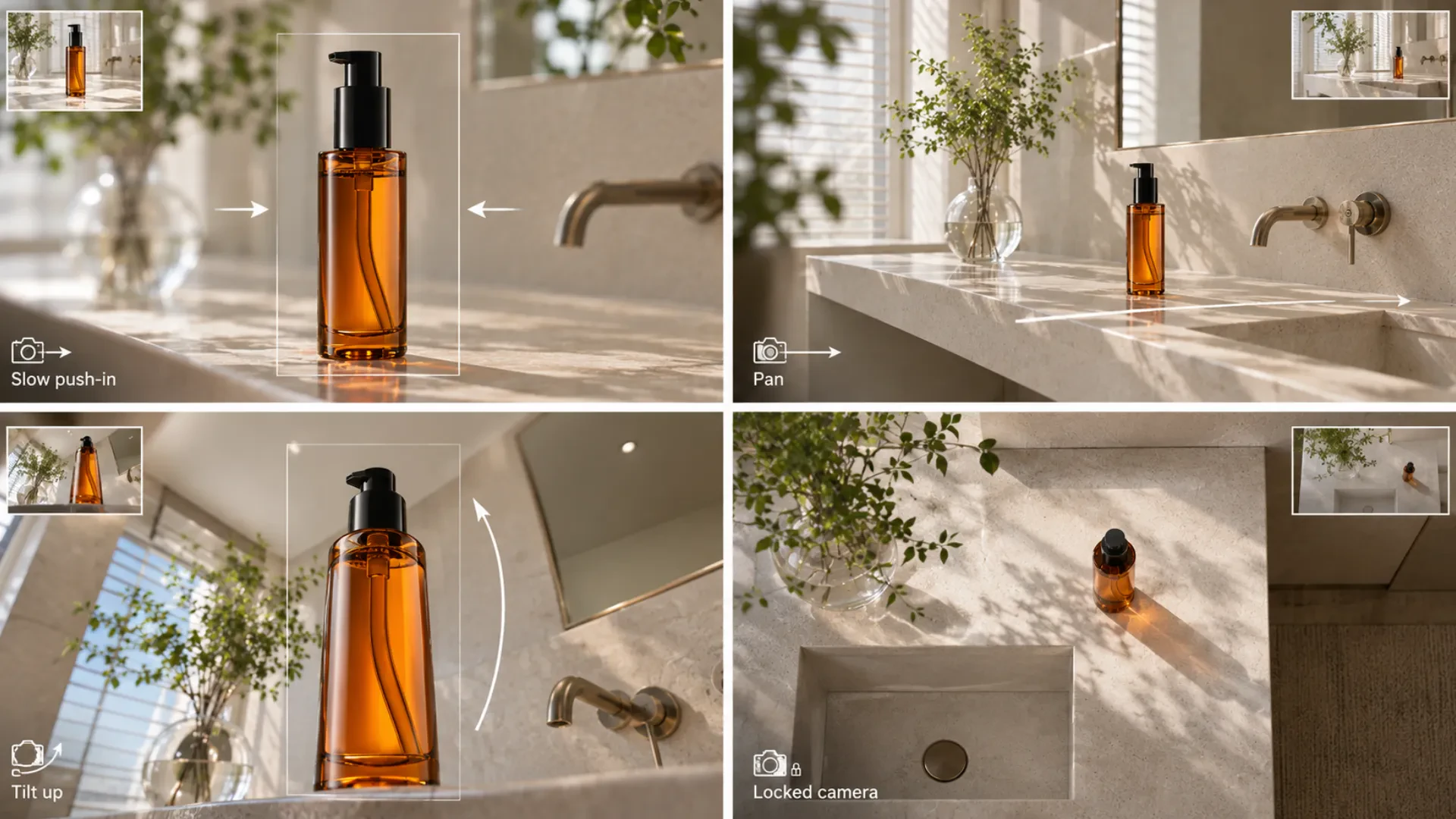
Say how the camera should frame the product and whether it moves. A close-up can show a label. A slow push-in can reveal texture. A locked camera is often enough when a hand is demonstrating the product.
Light should fit the references. If the product photo has soft light coming from the left, keep that direction in the prompt. Glass can catch a clean edge highlight; metal can reflect its surroundings. If the prompt asks for hard light from both sides, the reflections may look confused.
Write a Reference-to-Video Prompt
Start with the product details that matter, then describe the scene, action, camera, and light. If the selected model accepts several references, explain what each image should guide.
Example: reveal the product in a new scene
Use the product image for the brushed-steel gooseneck kettle, black handle, and narrow spout. Use the kitchen image for the dark stone counter and warm window light. The kettle tilts and pours a steady stream of hot water into a ceramic cup as a thin ribbon of steam rises. The camera pans smoothly from the spout to the cup. Keep the kettle's shape, handle, spout, and finish consistent. No extra kettles, text, or abrupt cuts.
Check the kettle's silhouette and spout, the water stream, and the point where it meets the cup. A reference can guide the model, but it cannot guarantee that every detail will stay exact from frame to frame.
Example: show the product in use
Use the product image to guide the ceramic mug, handle, color, and printed design. Use the kitchen image for the wooden table and warm window light. A person reaches in, wraps one hand around the handle, lifts the mug to their lips, takes a sip, then sets it back on the table. Keep the mug's shape and printed design consistent. Use a steady medium close-up at table height; let a small curl of steam rise from the cup.
Make the Clip in Vidsoul
- Open Vidsoul Reference to Video.
- Choose a model and check its reference-image limit.
- Upload a product image and, if useful, a separate scene image. Follow the selected model's reference limit.
- Describe the scene and one main action. Add camera and lighting directions.
- Choose an available duration and aspect ratio, then generate.
Watch the whole clip, not just the first frame. Pause near the beginning, middle, and end. Does the bottle keep its shape? Does the label move? Does the hand actually touch the mug? Do the shadows stay on the same side? Small changes are easy to miss at thumbnail size.
If the subject changes throughout the clip, simplify the reference set and repeat the details that must stay. If the product is right but the motion is wrong, keep the images and rewrite only the action or camera direction.
Fix the Usual Problems
The product changes between frames
Make sure the product references show the same item and package. A scene image may show a different location, but it should not introduce another conflicting version of the product.
The result looks like a slideshow
The prompt may describe the look but not the action. Add one visible movement: a hand picks up the item, the camera pushes in, or light moves across the surface.
The camera move feels random
Use one camera direction and a pace. “Slow push-in toward the label” is clearer than “dynamic cinematic camera.”
The label or logo is wrong
AI can alter small lettering, even when it appears in a reference. Inspect the clip closely and replace or correct the label in the final edit if accuracy matters.
Frequently Asked Questions
How many reference images can I use?
The limit depends on the selected Vidsoul model. Check the model's input settings and use only the images needed to show the product or style clearly.
Do reference images become the first frame?
Not necessarily. Reference to Video uses images as visual guidance. If you need to animate one exact still, choose Image to Video.
Can Reference to Video keep product packaging exact?
References can guide the packaging, but they do not guarantee a perfect match across every frame. Check logos, labels, colors, and proportions before publishing.
What should I write in the prompt?
Name the details to preserve, describe the scene and one action, then add the camera and light. Keep the directions consistent with the images you uploaded.
Start With the Product, Then Direct the Shot
Reference to Video works best when the images agree about what the product looks like. Give the model a clear set, one action, and a camera move you can picture. Then check the whole clip against the references.
Try it in Vidsoul Reference to Video.